



Windows Server (PowerShell module)
danger
We have updated the Passwork installation on Windows Server. Instead of the PassworkSetup.exe installer, a modern and convenient installation method using the PowerShell module is now available.
Online update
Open PowerShell as "Administrator":
Using the Start context menu
- Right-click on the Start icon in the lower-left corner of the screen.
- Select "Windows PowerShell (Administrator)" from the context menu.
Using the Start menu
- Left-click on the Start icon in the lower-left corner of the screen.
- Type
powershell - Open PowerShell as "Administrator" by pressing
Ctrl + Shift + Enter
And run the online Passwork update:
- PowerShell
Update-Passwork -Method online
Actions performed
- Checking for the presence of the
.passwork_componentfile - Using
.passwork_componentto get the current Passwork version - Checking internet availability by querying the client portal
- Requesting the available version from the client portal
- Checking if an update is necessary
- Preparing and downloading the new version
- Processing and copying files to the new version
- Archiving and cleaning the old version
- Installing the new version
Offline update
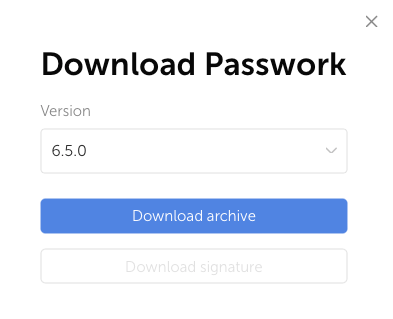
Go to the Customer Portal and download the archive with the current Passwork version:
Move the archive to the directory where the offline update is run on the Passwork server:
- PowerShell
Update-Passwork -Method offline
Actions performed
- Checking for the presence of the
.passwork_componentfile - Searching for and moving the Passwork archive
- Using
.passwork_componentto get the current Passwork version - Checking if an update is necessary
- Processing and copying files to the new version
- Archiving and cleaning the old version
- Installing the new version
danger
The script will search for an archive named in the format Passwork-*. If the archive name differs, the Passwork update will end with an error.